

 techruzz
If you’re an artist, designer, or just someone passionate about digital drawing, you’ve probably heard of Krita. Krita is a powerful, free, and open-source painting program that’s perfect for creating concept art, illustrations, comics, and animations. But before you can start creating masterpieces, you need to install it on your computer. If you’re using a Windows 11 PC or laptop, this guide will walk you through every step of how to download and install Krita smoothly, even if you’re not a tech wizard.
Why Krita is Worth Installing
I’ve been using digital painting tools for over a decade, and Krita has always stood out because of its versatility and professional-grade features. It’s free, which is amazing for beginners and professionals alike, and its brush engine is one of the most advanced I’ve worked with. From my experience, Krita works beautifully on Windows 11, offering stability and compatibility with modern hardware, which means fewer crashes and better performance.
System Requirements for Windows 11
Before we start the installation process, it’s crucial to make sure your Windows 11 PC or laptop meets Krita’s system requirements. Running Krita on a machine that doesn’t meet the specs can cause lag, crashes, or unexpected behavior. Here’s what you need:
- Operating System: Windows 11 (64-bit)
- Processor: Intel or AMD processor with at least 2 cores
- RAM: Minimum 4 GB (8 GB or more recommended)
- Disk Space: At least 2 GB free
- Graphics: OpenGL 3.0 compatible GPU (for best performance)
Having a touch screen or graphics tablet is optional but highly recommended for drawing.
Step 1: Visit the Official Krita Website
To ensure you’re downloading a safe and up-to-date version, always get Krita from the official website: https://krita.org.
Once on the homepage, you’ll see a prominent Download button. Don’t click on random download links you find on third-party sites—these may contain malware or outdated versions. I’ve seen many beginners struggle because they downloaded unofficial versions, so stick to the source.
Step 2: Choose the Right Version for Windows 11
Krita offers multiple installation options:
- Standard Installer (EXE): This is the easiest way to install Krita on Windows 11. The installer guides you through each step.
- Portable Version: This is useful if you want to run Krita without installing it permanently on your PC. Handy for carrying on a USB drive.
- Microsoft Store Version: This version is convenient because updates are handled automatically, but some advanced users prefer the standard installer for more control.
For most users, I recommend the Standard Installer (EXE) for its simplicity.
Step 3: Download the Installer
Click the Download button for the Windows version. The file is usually around 200-250 MB, so the download time will depend on your internet speed. While downloading, make sure you note where the file is saved on your PC—usually the Downloads folder.
Step 4: Install Krita on Windows 11
Once the download is complete, locate the .exe file and double-click it to start the installation process. Here’s a step-by-step breakdown:
- User Account Control: Windows may ask if you want to allow this app to make changes. Click Yes.
- Setup Wizard: You’ll see the Krita setup wizard. Click Next to continue.
- License Agreement: Read through the GNU General Public License (or skip if you’re familiar) and click I Agree.
- Choose Install Location: The default is usually
C:\Program Files\Krita. You can change it if needed, then click Next. - Select Components: You can leave all components checked. Click Next.
- Start Menu Folder: Choose whether you want a Start Menu folder or just click Next.
- Install: Click Install and wait for the process to complete. This usually takes a few minutes.
- Finish: Once installation is complete, check Run Krita and click Finish.
From my experience, the entire process is smooth on Windows 11, but having admin rights is crucial.
Step 5: Launch Krita and Set Up Your Workspace
When you launch Krita for the first time, it may take a minute to load as it initializes brushes and templates. Once open, you’ll see the default workspace.
Here are some tips to get started:
- Configure Tablet Settings: If you’re using a graphics tablet, go to Settings > Configure Krita > Tablet Settings to calibrate.
- Choose a Template: Krita offers templates for comic pages, animations, and standard artboards.
- Customize Workspace: You can drag and drop tool panels to suit your workflow.
I always recommend spending some time here to set up shortcuts and brushes to match your style. It will save hours later.
Step 6: Keep Krita Updated
Krita frequently releases updates that include new brushes, performance improvements, and bug fixes. To check for updates:
- Open Krita
- Go to Help > Check for Updates
Installing updates ensures your software runs smoothly on Windows 11 and keeps your workflow efficient. I’ve had cases where older versions would crash on Windows 11 due to compatibility issues, so updates are key.
Step 7: Troubleshooting Common Installation Issues
Sometimes, Windows 11 users might face installation hiccups. Here are a few common problems and solutions:
- Krita Won’t Launch: Make sure your graphics drivers are up to date.
- Slow Performance: Increase RAM allocation if using large files or disable unnecessary background apps.
- Tablet Pressure Sensitivity Not Working: Reinstall tablet drivers and restart Krita.
From my experience, most issues are minor and easily fixed by following these steps.
Conclusion
Installing Krita on a Windows 11 PC or laptop is straightforward if you follow the right steps. From downloading the official installer to configuring your workspace, this guide ensures you start your digital art journey without any technical headaches. Krita’s professional-grade features, combined with Windows 11 stability, make it an ideal choice for artists of all levels.
By now, you should have Krita installed, ready to explore its wide range of brushes, tools, and animation features. Start creating, experimenting, and don’t be afraid to tweak settings to suit your style. With the right setup, your workflow will be smooth, and your creativity can flourish.
FAQs
1. Is Krita free for Windows 11?
Yes, Krita is completely free and open-source. You can download and use it without any cost.
2. Can I install Krita on Windows 11 without admin rights?
You can use the portable version without admin rights, but installing the standard version usually requires administrative privileges.
3. Does Krita support tablets on Windows 11?
Yes, Krita fully supports graphics tablets and touch screens. You may need to configure tablet settings for optimal performance.
4. How often should I update Krita?
Check for updates at least once a month. Updates include bug fixes, new brushes, and performance improvements.
5. Can I run Krita on a laptop with 4GB RAM?
Yes, but performance may be limited with large files. 8GB or more is recommended for smoother operation.
Installing Krita 5 on Windows 11 PC or Laptop (IMAGE GUIDE)
Here is a step by step guide on how to install Krita on Windows 11 PC or Laptop.
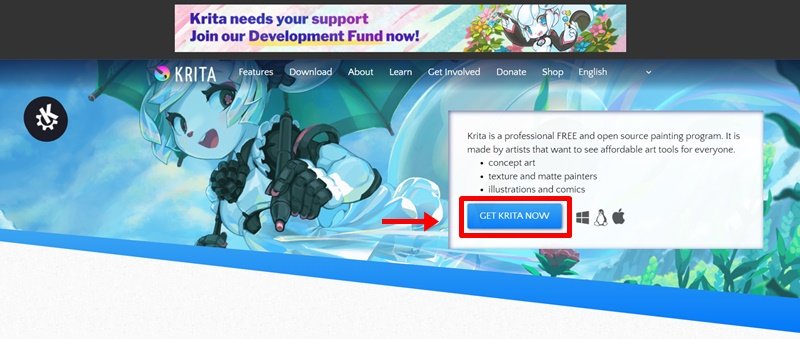
Step 1: Go to the official Krita website using any web browser and click on Get Krita Now button.
Step 2: On the next page, Click on Windows installer 64 bit button.

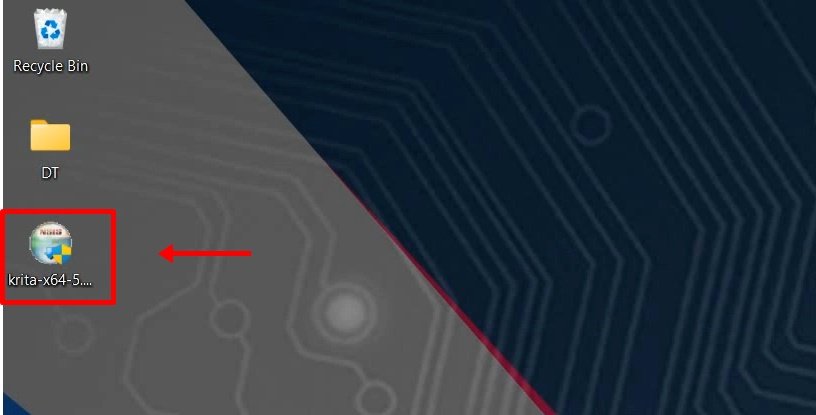
Step 3: Locate and run the executable file. It will prompt confirmation to make changes to your system. Click on Yes.
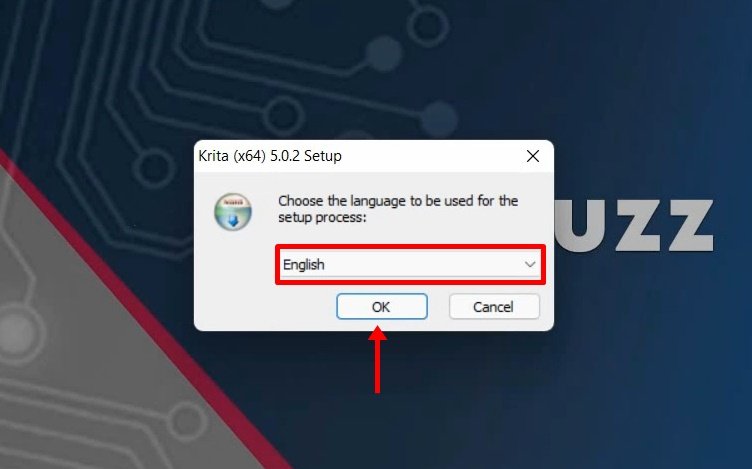
Step 4: Next, choose your setup language and click on OK.
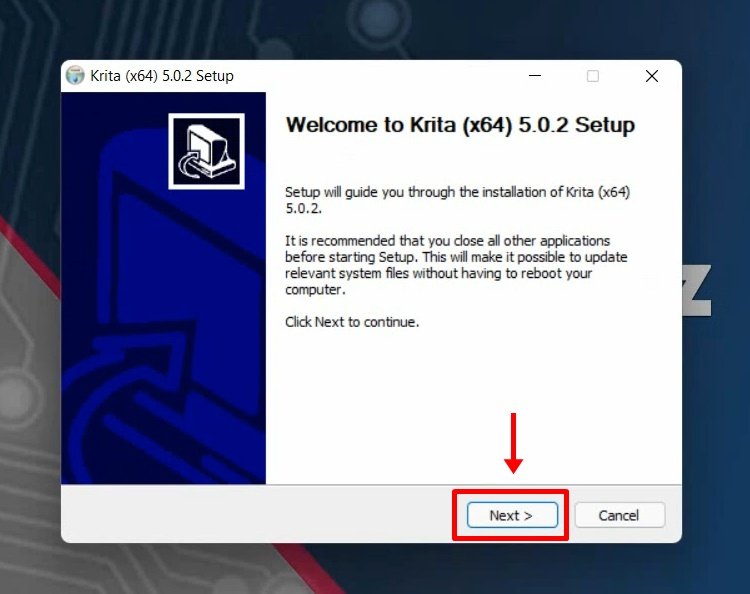
Step 5: Click Next on the setup wizard window.
Step 6: Next,check I Accept the terms of the License Agreement then click on Next.
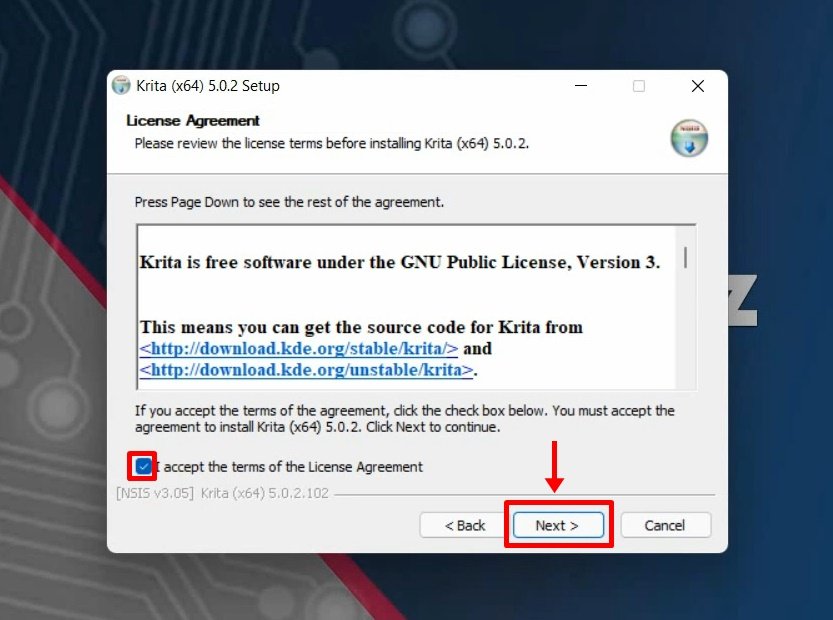
Step 7: Next, choose your installation location and click on the Next button.

Step 8: Next screen is of choosing components, all components are already marked so don’t change anything just click on the Next button.
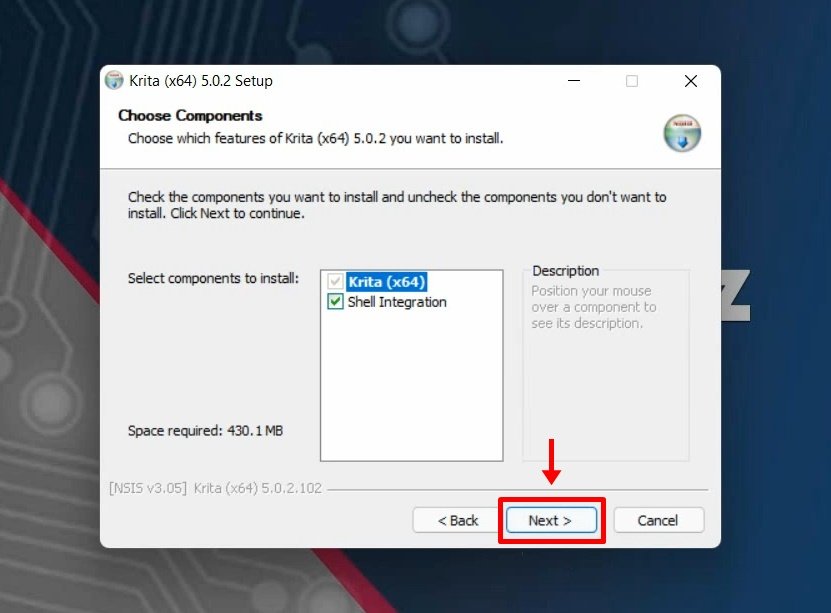
Step 9: The next screen will be of License Agreement, click on I Agree.
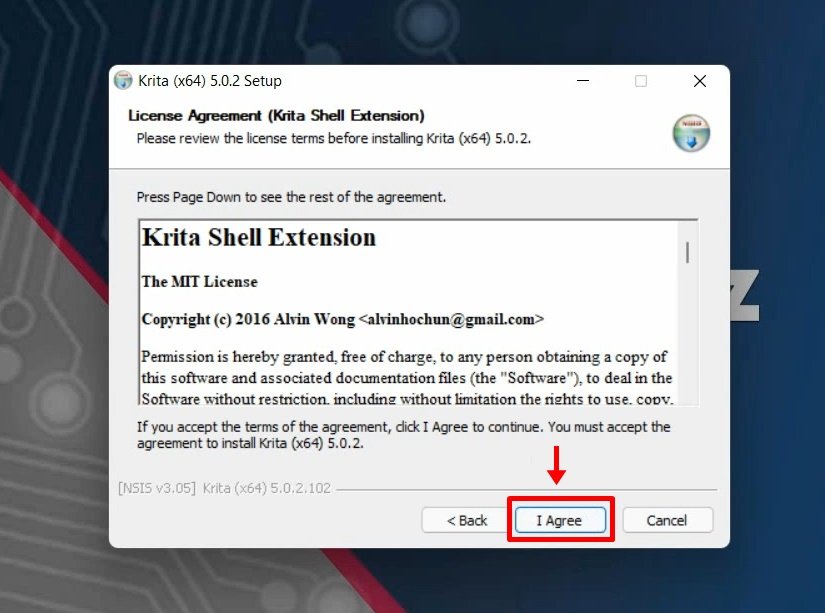
Step 10: On the next screen, choose Start Menu Folder and click on Next.

Step 11: Next, Check Create a desktop icon and click on Install.

Step 12: Now take a minute for the installation process to complete.

Step 13: Click on the Finish button.

You have successfully installed Krita 5 on your windows 11 or Windows 10 PC. Krista launch icon will be created on the desktop. You can now run it to see the interface.


Watch the step by step video tutorial below to how to download and install Krita 5 on Windows 11 PC and how to draw and paint using Krita 5.
Rate post










Add comment